> ## Documentation Index
> Fetch the complete documentation index at: https://docs.rasayel.io/llms.txt
> Use this file to discover all available pages before exploring further.
# How to update WhatsApp profile info
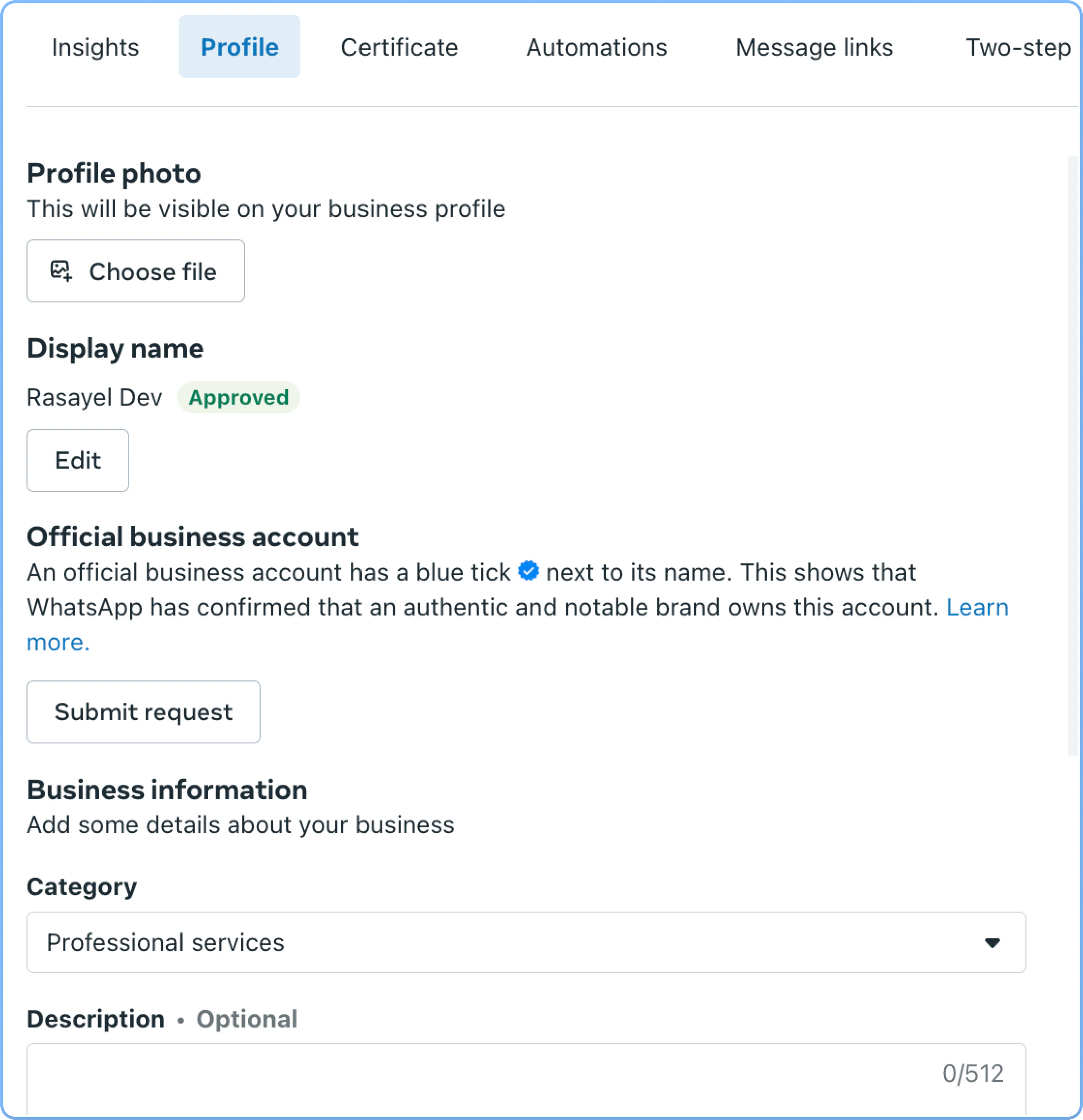
To change your **logo, profile details**, or **Display name**, follow these steps:
1. Go to [WhatsApp Business Manager](https://business.facebook.com/wa/manage) → Phone numbers
2. Click on the settings icon next to the phone number you want to update
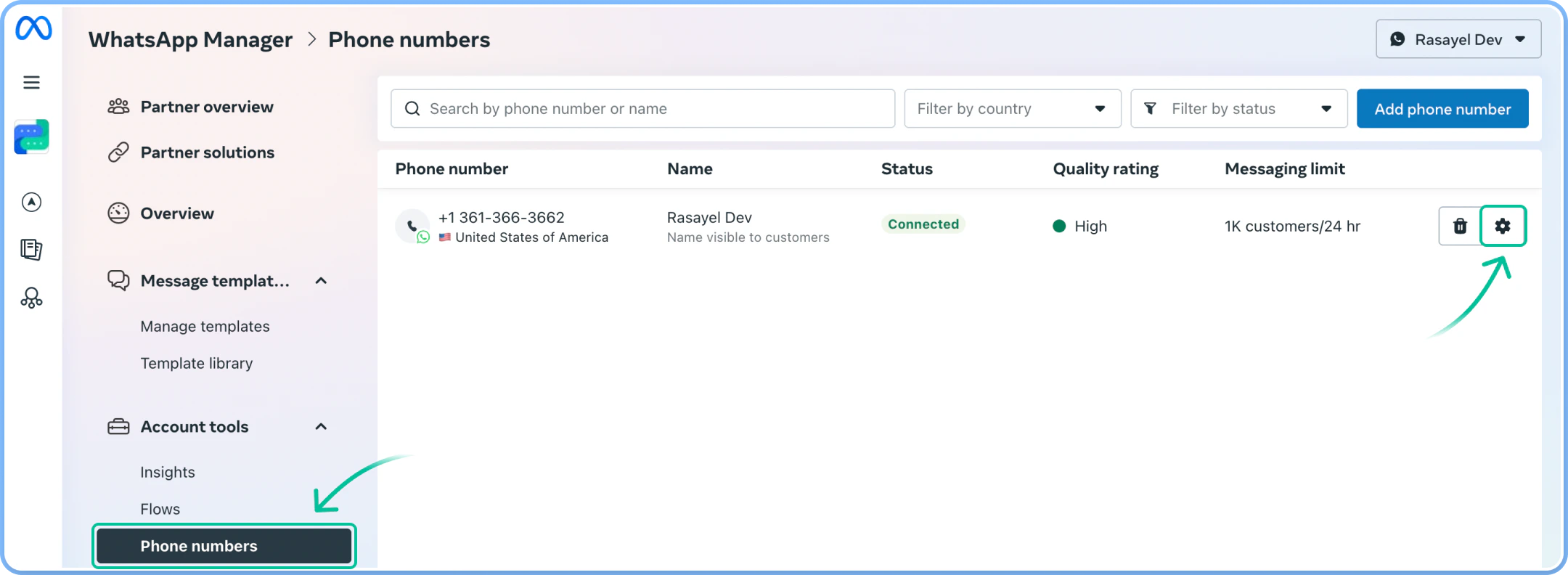 3. Then, under the Profile section, you can update your photo, Display name, description, and other details.
 When choosing a new name, make sure to follow [WhatsApp’s Official Name Guidelines](https://www.facebook.com/business/help/338047025165344).
**Tip:** If you don’t see your number in the list, it may be saved under another WhatsApp Account. Just open drop-down menu at the top right:
When choosing a new name, make sure to follow [WhatsApp’s Official Name Guidelines](https://www.facebook.com/business/help/338047025165344).
**Tip:** If you don’t see your number in the list, it may be saved under another WhatsApp Account. Just open drop-down menu at the top right:
