> ## Documentation Index
> Fetch the complete documentation index at: https://docs.rasayel.io/llms.txt
> Use this file to discover all available pages before exploring further.
# Migrating your number to Rasayel
Migrating your number is necessary if it’s registered with another service provider and you wish to keep the number and use it with Rasayel. Please note that templates, number quality rating and messaging limits are also migrated with the number. In that case please follow the steps below:
1. Make sure your Facebook Business Account is verified. Migration is **not supported** for unverified accounts.
2. Disable your 2 Factor Authentication from WhatsApp Business Manager > Phone Numbers > Settings.
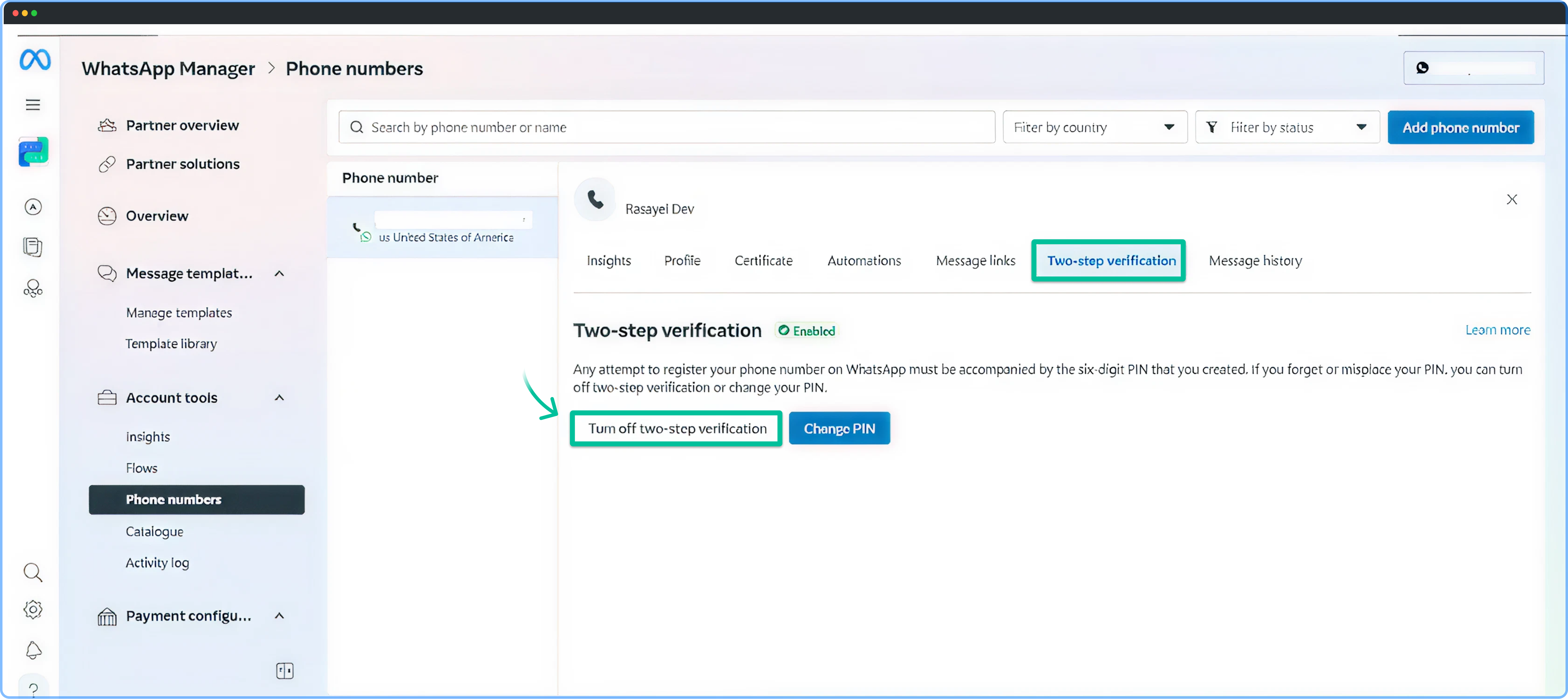
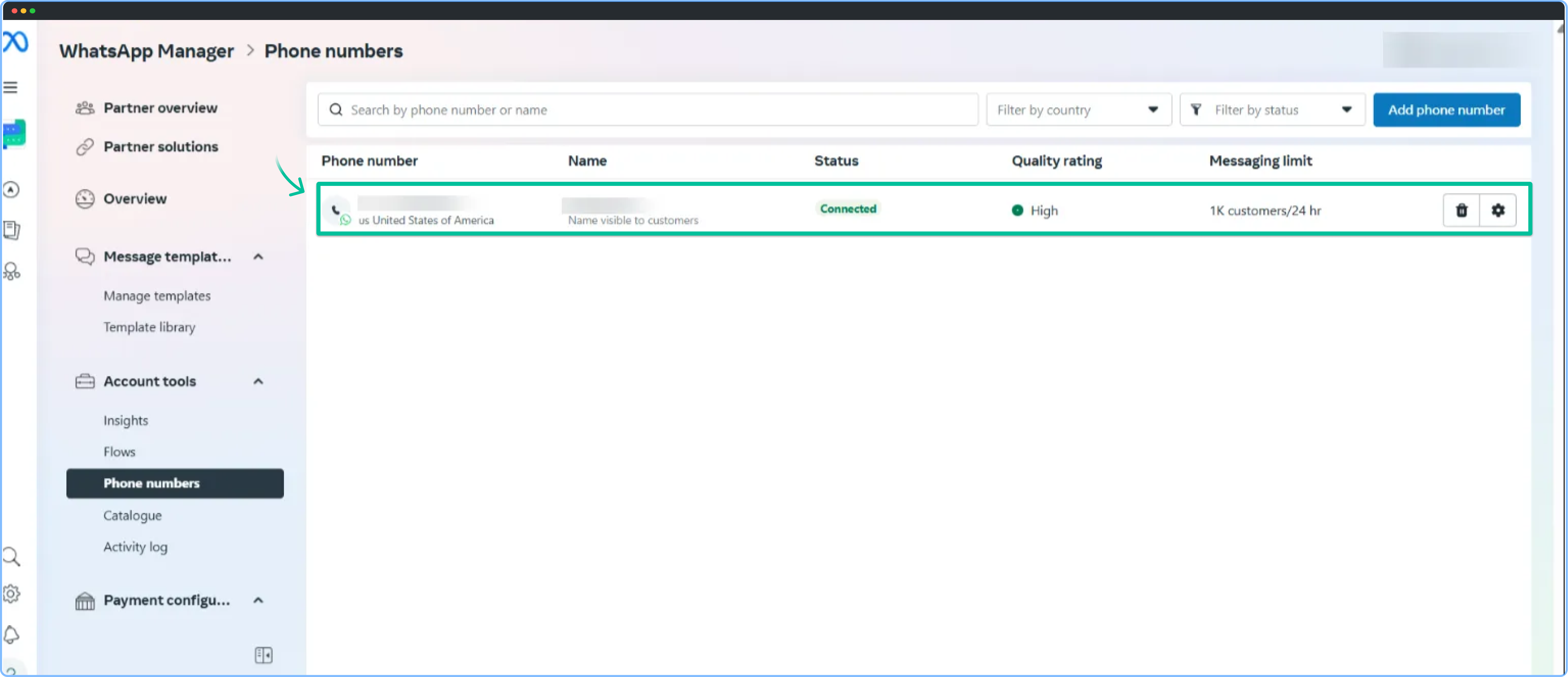 3. Select **Two Step Verification > Turn Off Two Step Verification**
 4. Go to **Rasayel**> **Channels** > **WhatsApp.**
5. Click on **Connect to WhatsApp.**
6. You’ll be redirected to **Facebook.**
* Log in with your personal Facebook Account.
7. Click on **Get started.**
4. Go to **Rasayel**> **Channels** > **WhatsApp.**
5. Click on **Connect to WhatsApp.**
6. You’ll be redirected to **Facebook.**
* Log in with your personal Facebook Account.
7. Click on **Get started.**
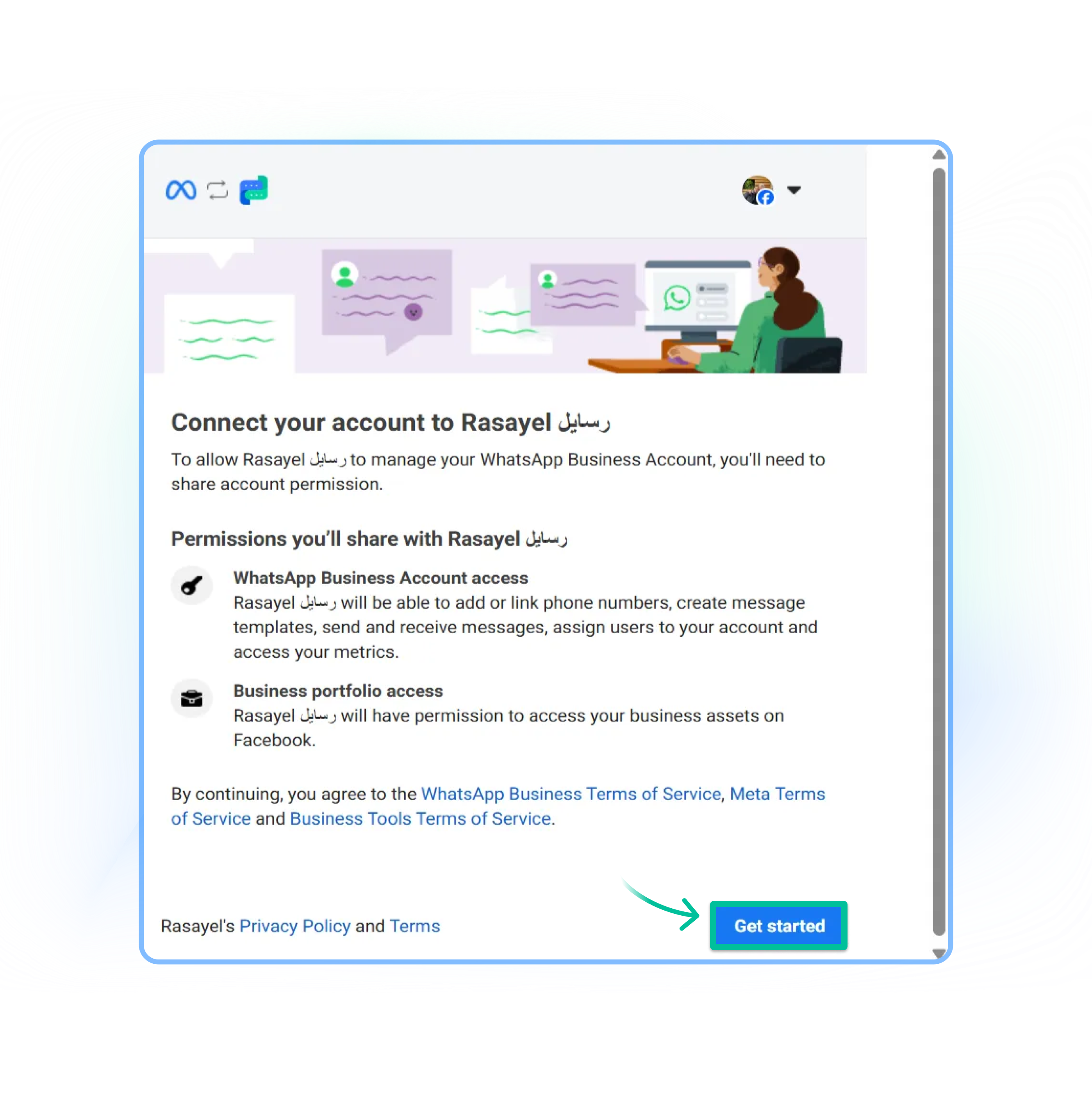 8. Check the permissions and click on **Continue**.
9. Choose your existing **Meta Business Portfolio** from the dropdown list..
10. Fill in your business information and click **Next.**
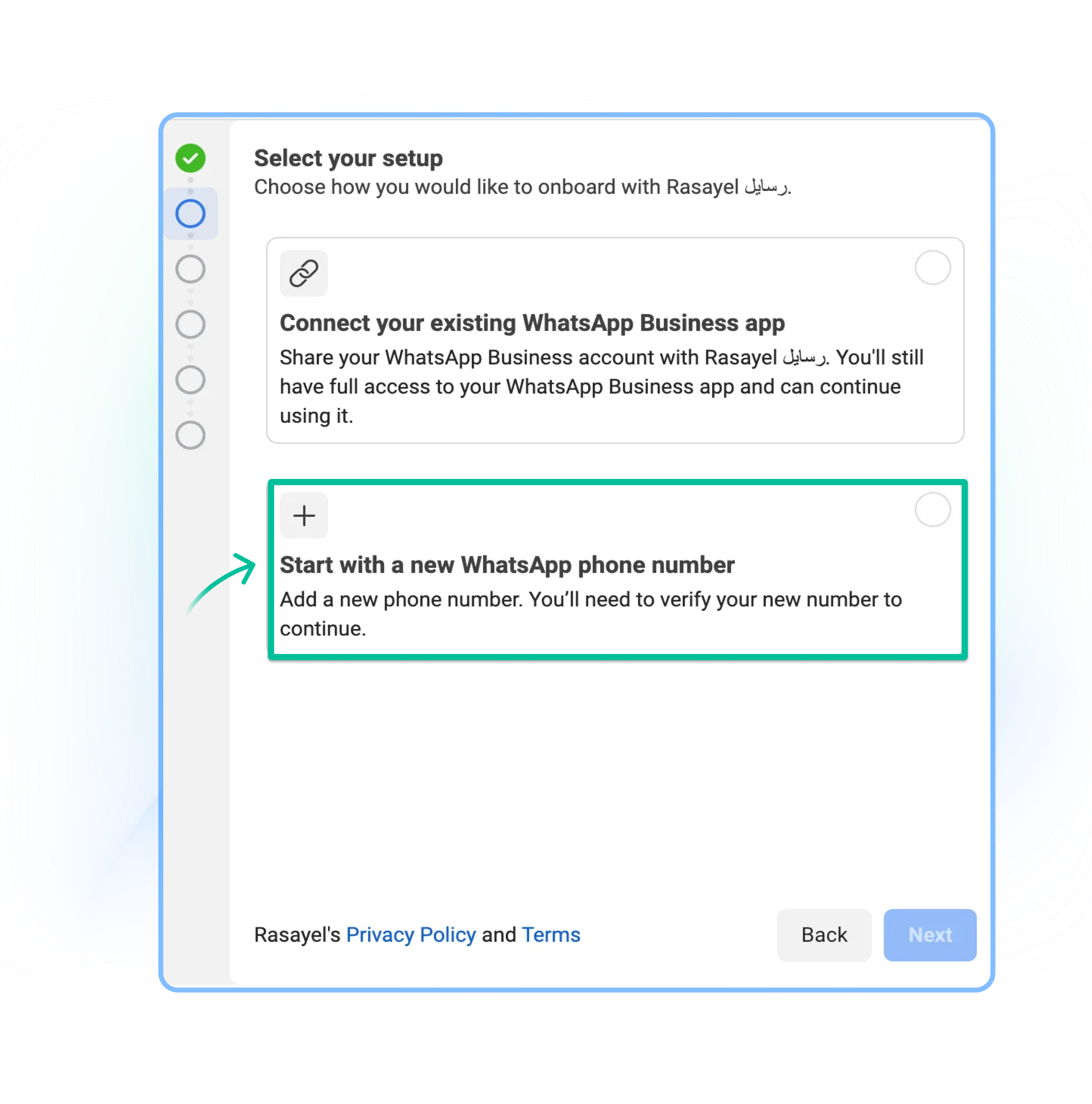
11. Choose Start with a **new WhatsApp phone number option.**
8. Check the permissions and click on **Continue**.
9. Choose your existing **Meta Business Portfolio** from the dropdown list..
10. Fill in your business information and click **Next.**
11. Choose Start with a **new WhatsApp phone number option.**
 12. Create a new WhatsApp Business Account.
* Choose **Create a new WhatsApp Business Account** in a drop down menu and fill in the details.
* *Note: these details will be visible to your customers on WhatsApp.*
* ***Make sure new WhatsApp Display name matches the existing name.***
12. Create a new WhatsApp Business Account.
* Choose **Create a new WhatsApp Business Account** in a drop down menu and fill in the details.
* *Note: these details will be visible to your customers on WhatsApp.*
* ***Make sure new WhatsApp Display name matches the existing name.***
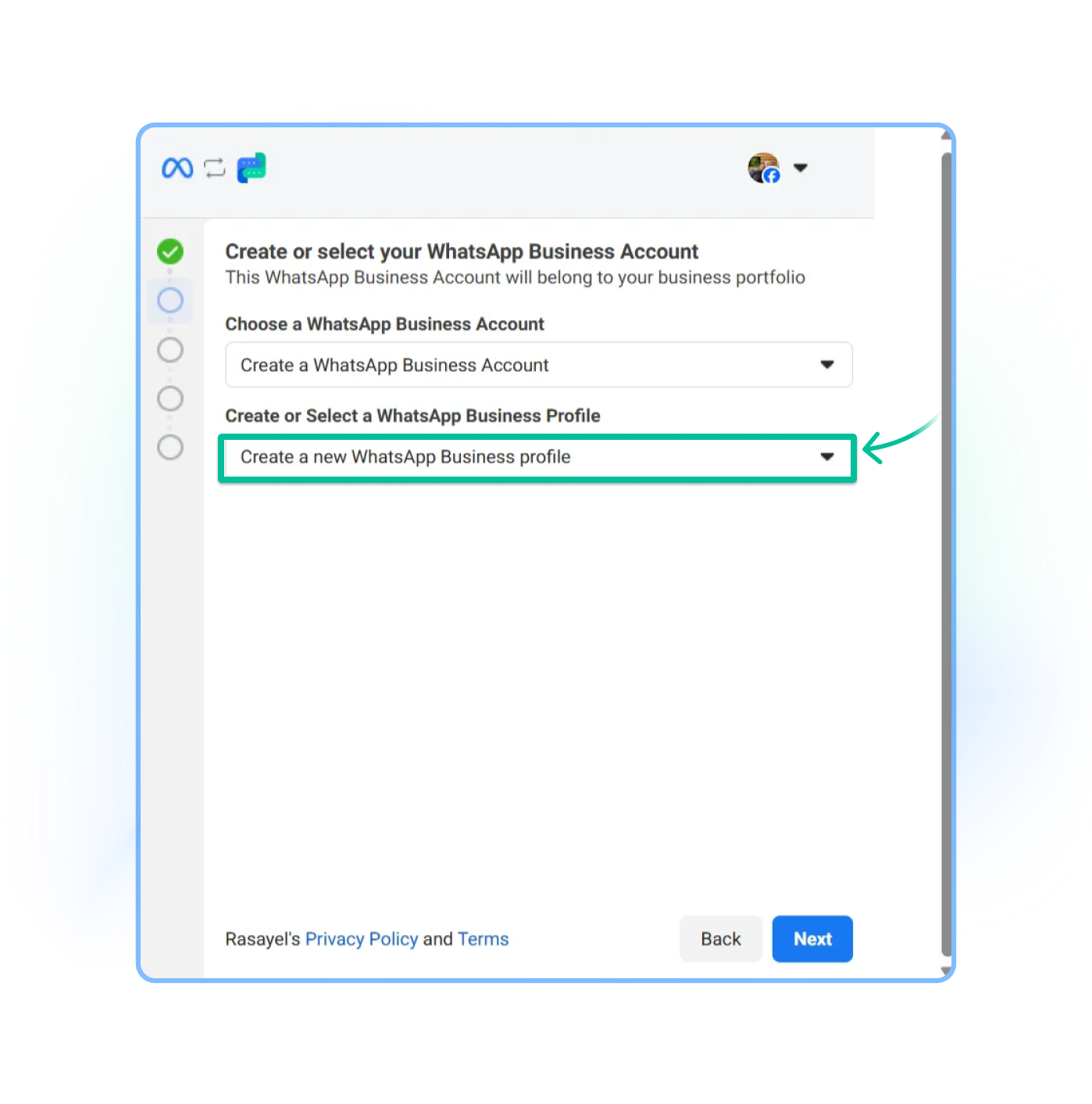 13. On this step, do not proceed before going to [https://business.facebook.com/billing\_hub](https://business.facebook.com/billing_hub) and add a payment method to this new WABA.
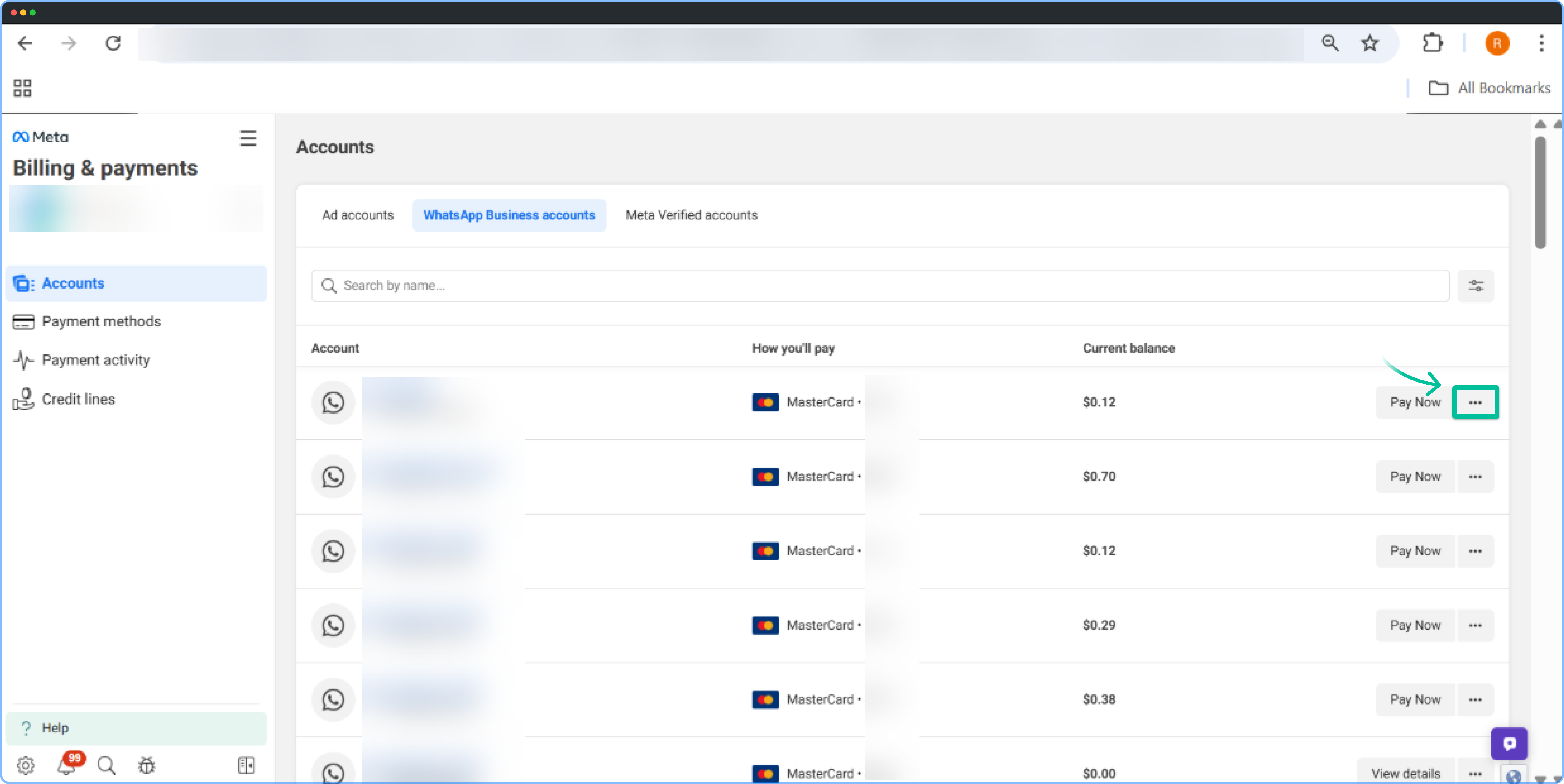 14. When payment method is added, return to the embedded sign up form and complete the last steps (enter the phone number and past a 6 digit code).