> ## Documentation Index
> Fetch the complete documentation index at: https://docs.rasayel.io/llms.txt
> Use this file to discover all available pages before exploring further.
# Troubleshooting & FAQs
### **I have denied/blocked permissions and I want to enable them**
In this case, you will see the **Notification permission denied** message in your notification settings.
That means you need to change the permissions to allow Rasayel to send you notifications.
Each browser does it differently, so follow the instructions for your browser:
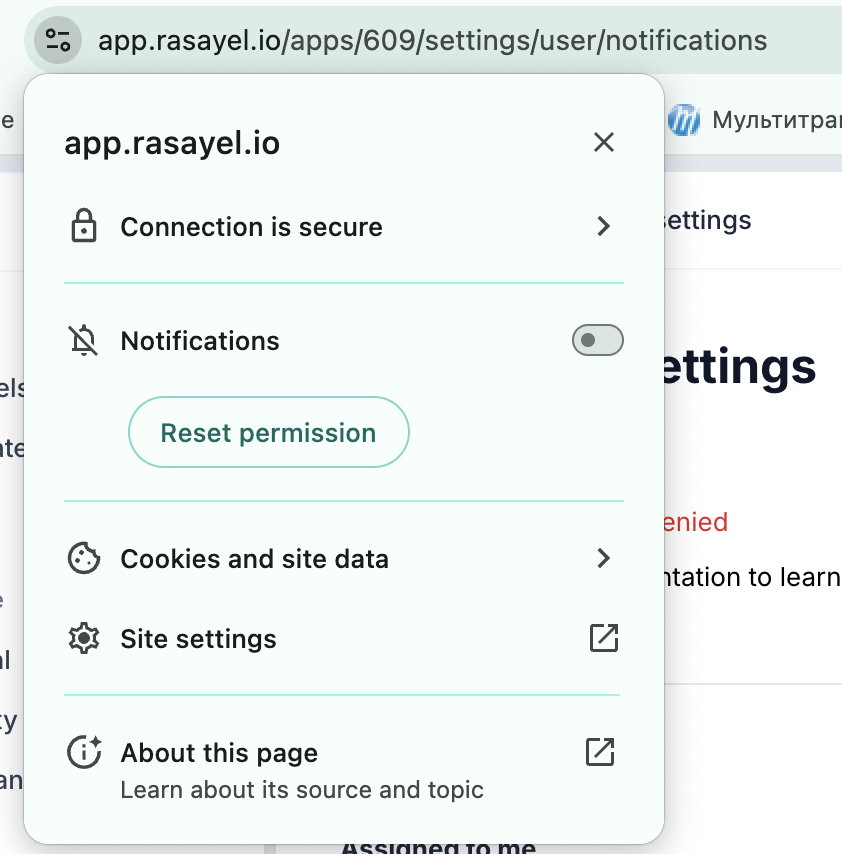
* **Google Chrome:**
* On the left corner of your address bar, click on the arrow to display the website permissions. Then turn on the toggle and click on **Reset permission**.
 * **Safari**
* Open Safari preferences by pressing **Cmd + Comma** on your keyboard and go to the **Websites preferences**.
* **Safari**
* Open Safari preferences by pressing **Cmd + Comma** on your keyboard and go to the **Websites preferences**.
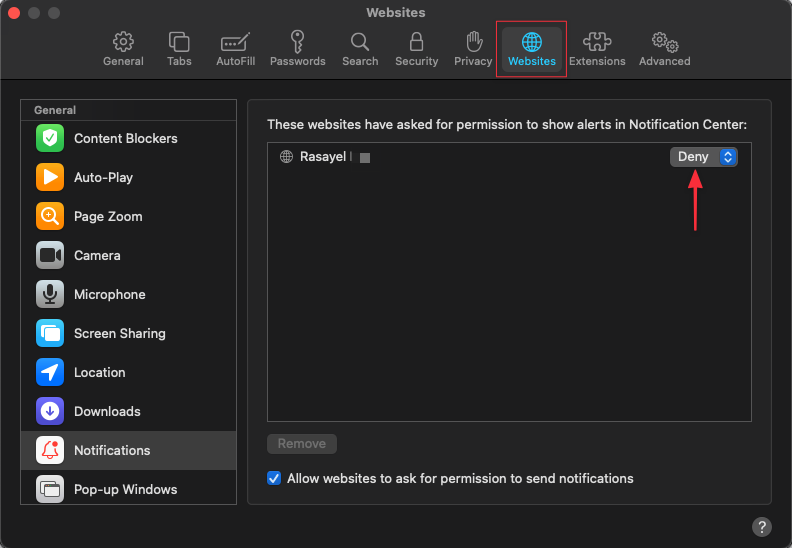 You should see Rasayel there; click on the permission button that says **Deny** and choose **Allow.**
 * **Firefox:**
* On the left of your address bar, click on the dialog icon
* **Firefox:**
* On the left of your address bar, click on the dialog icon
 Then click the (**x**) icon next to the **Blocked** label.
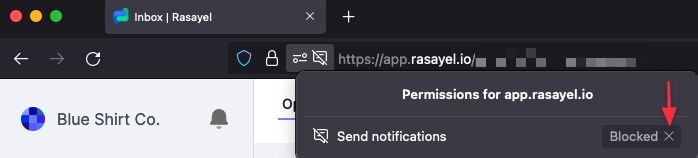 Then you will be asked to reload your browser.
After you are done, reload the page. The red text warning should be gone, and a **Notify me** button will appear in its place.
### I enabled push notifications but they are still not working
First of all, no worries, we have a few more tips. Depending on your browser and operating system, please check the following:
**MacOS:**
* **Firefox**
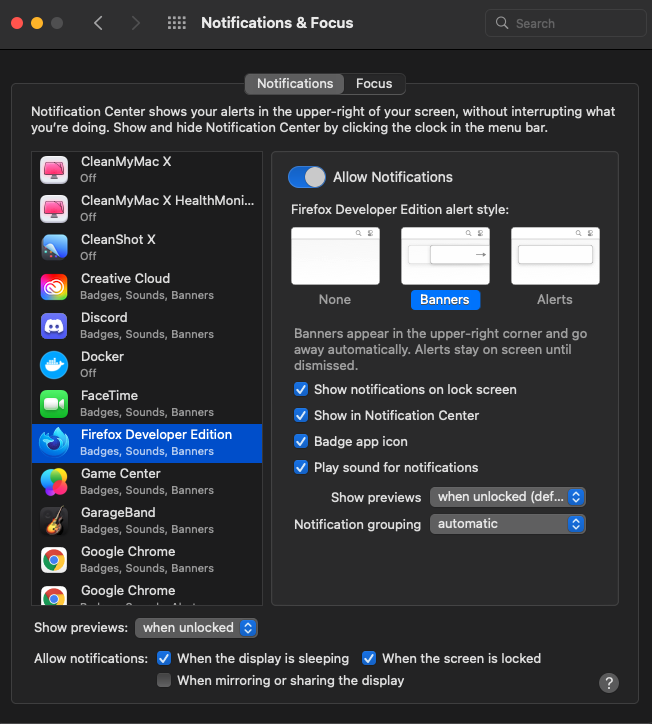
* Make sure your Mac notification settings for your browser look like this:
Then you will be asked to reload your browser.
After you are done, reload the page. The red text warning should be gone, and a **Notify me** button will appear in its place.
### I enabled push notifications but they are still not working
First of all, no worries, we have a few more tips. Depending on your browser and operating system, please check the following:
**MacOS:**
* **Firefox**
* Make sure your Mac notification settings for your browser look like this:
 * **Chrome**
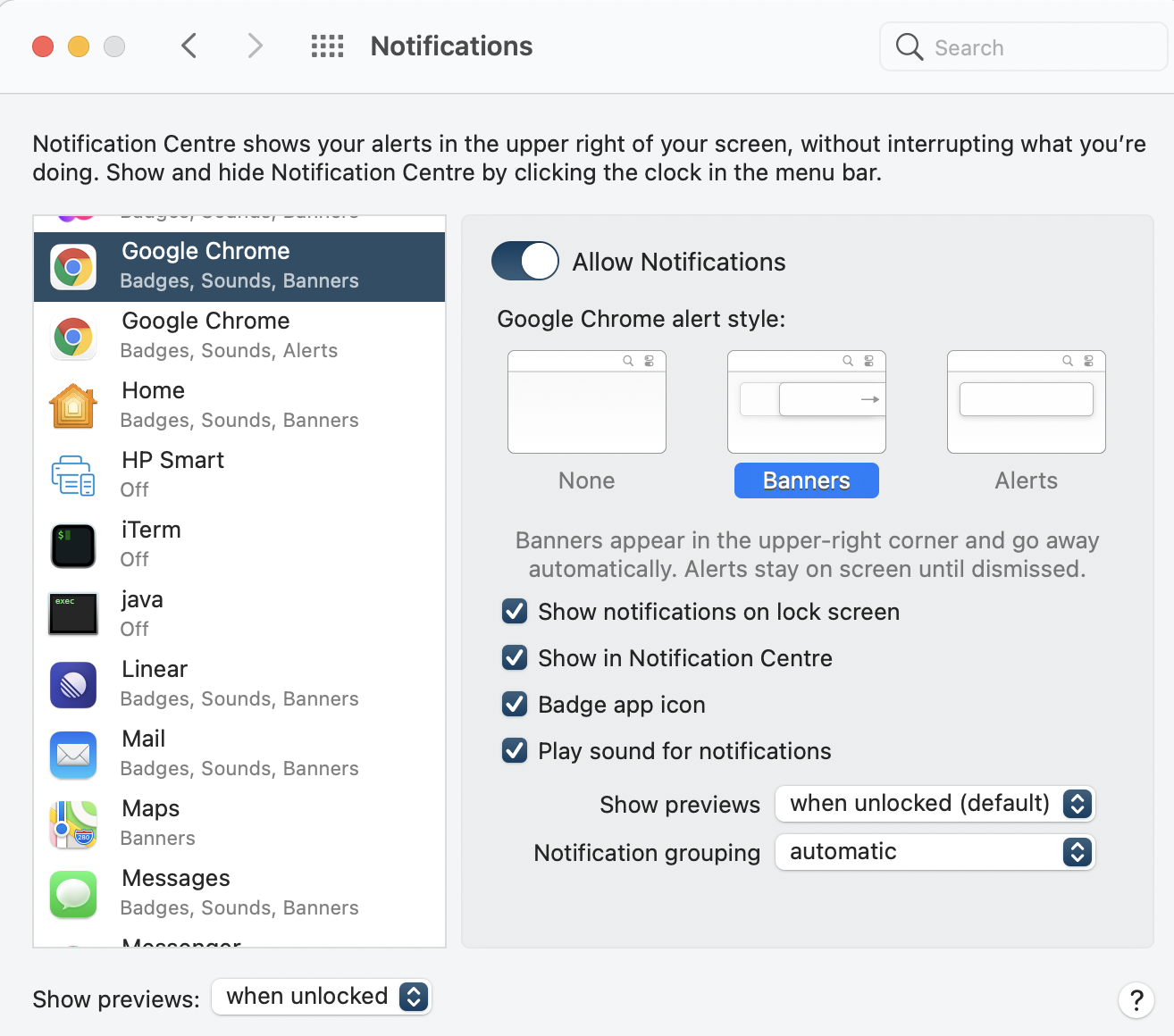
* Make sure your Mac notification settings for your browser look like this:
* **Chrome**
* Make sure your Mac notification settings for your browser look like this:
 * **Windows**
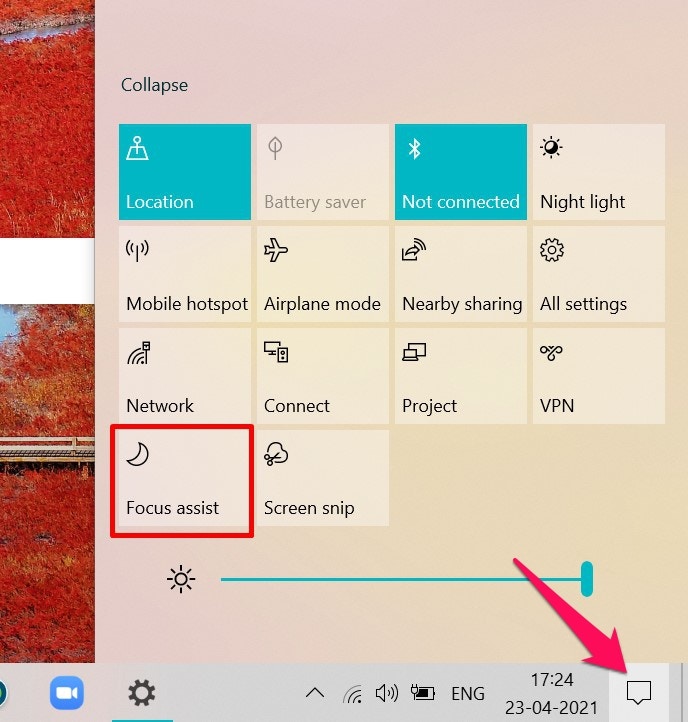
* Make sure that **Focus assist** is disabled
At the right bottom edge of the taskbar: Click the **Action Center** (the box that looks like dialogue). You can find **Focus Assist**.
* **Windows**
* Make sure that **Focus assist** is disabled
At the right bottom edge of the taskbar: Click the **Action Center** (the box that looks like dialogue). You can find **Focus Assist**.