> ## Documentation Index
> Fetch the complete documentation index at: https://docs.rasayel.io/llms.txt
> Use this file to discover all available pages before exploring further.
# Contact matching
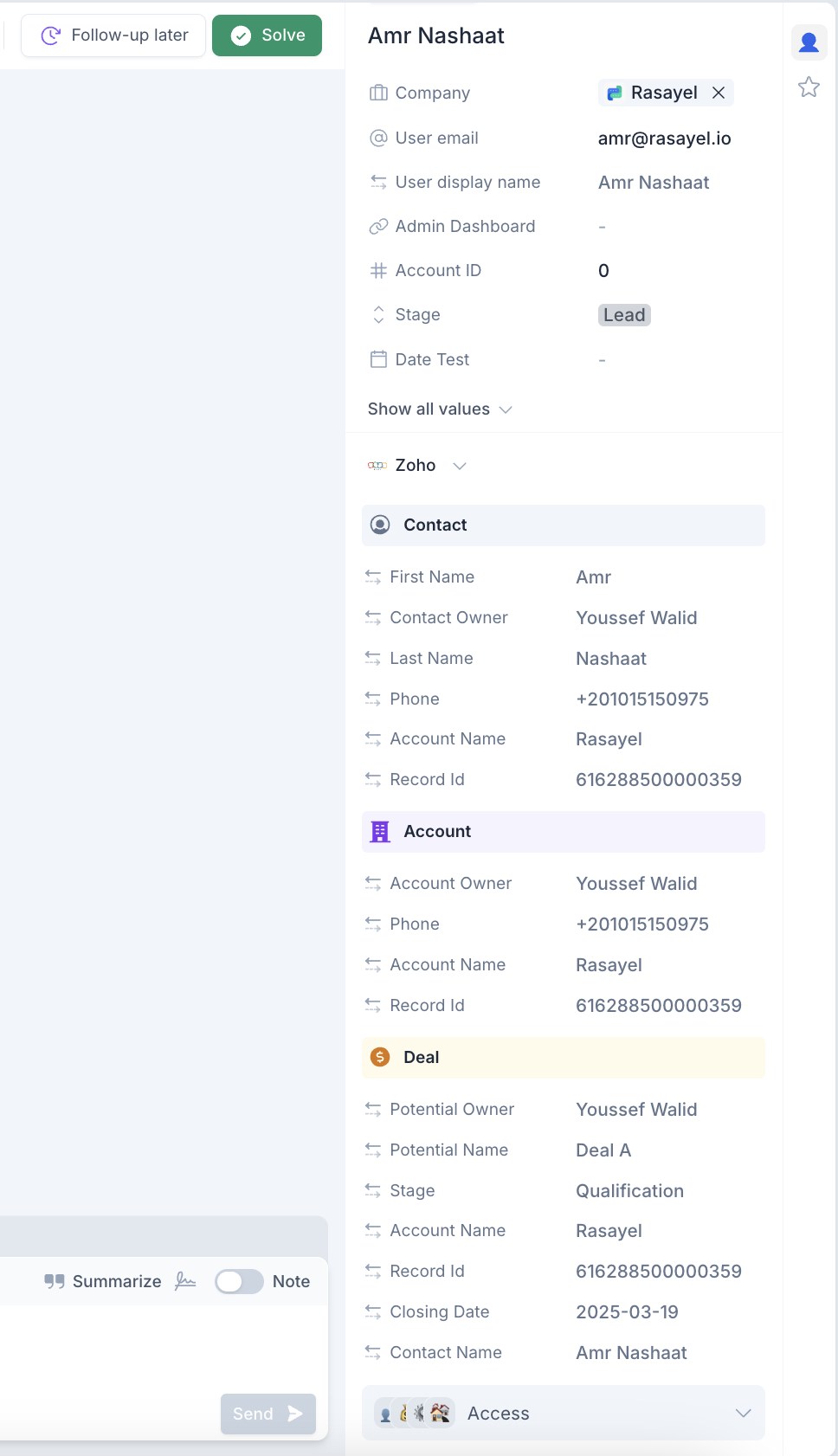
After connecting your Zoho account to Rasayel, you will see the **Zoho contact card** on the conversation sidebar of each conversation displaying the customer’s Zoho properties.
With our Zoho integration, you can:
1. Match Rasayel contacts to your Zoho **Leads/Contacts**
2. View matched Zoho **Lead/Contact** properties, alongside their associated **Deals** and **Accounts**
3. View WhatsApp messages sent from Rasayel to your Zoho Leads/Contacts
4. Select certain Zoho properties to view in the **Contact Sidebar** on Rasayel
5. Build detailed analytics based on WhatsApp messages sent to your contacts
We automatically match Rasayel contacts to equivalent Zoho leads/contacts, and display this information on the right sidebar of your Rasayel inbox (under the contact card).
Our Zoho integration will attempt to match a Rasayel contact by the **phone number**, and will show any matched contacts or leads.
\*\*Note: \*\*Zoho Contacts take precedence over Zoho Leads during the matching, meaning that if a Rasayel contact matches both a Contact and a Lead, the Contact will be displayed.
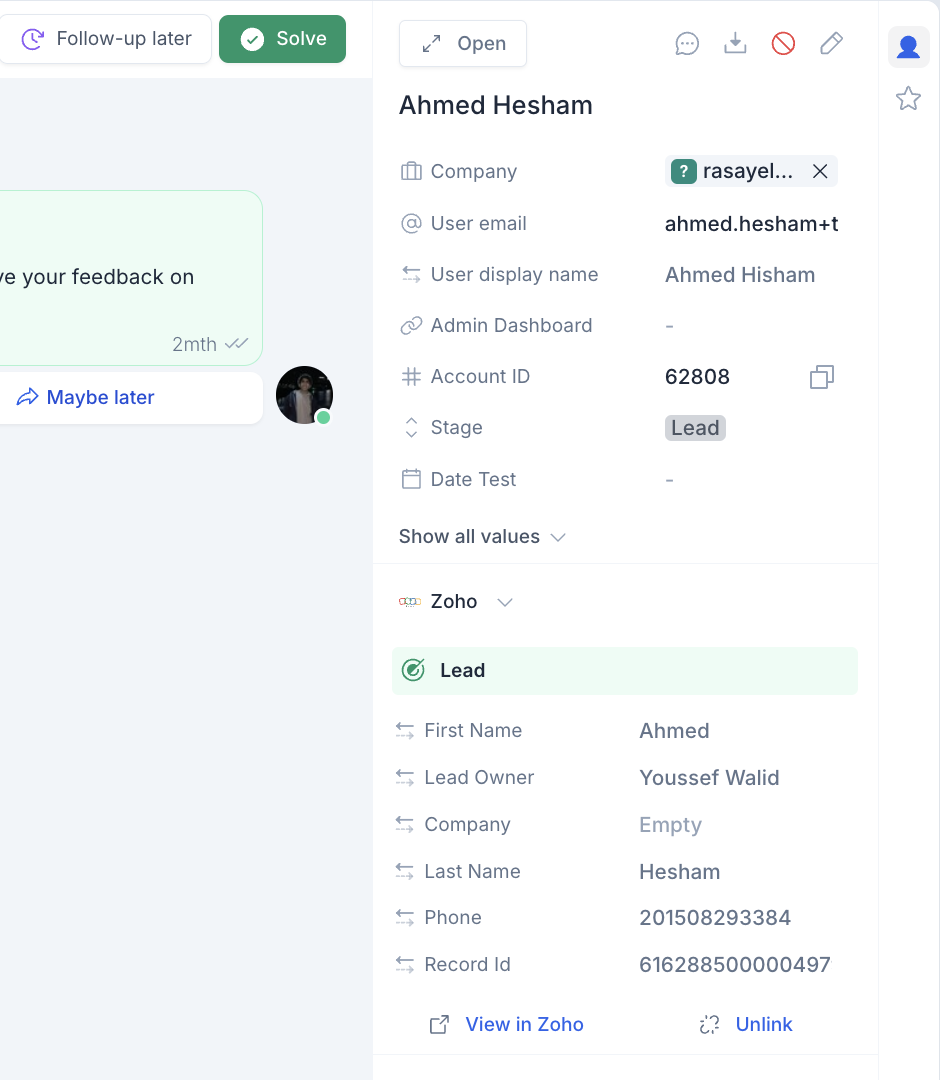
When you activate your Zoho integration, on the right sidebar, you’ll see the **Zoho Card**:
There are different states a Rasayel contact can have:
1. **No matching contact/lead found**
* This means that Rasayel was unable to find a contact or lead on your Zoho account with the same **phone number.**
* Formatting is important. Your contacts’ or leads’ phone numbers on the CRM **must** include the country code.
2. **Matching Contact/Lead found**
* This will appear when we successfully match a Lead by phone. We’ll display the properties that we fetched directly from Zoho.
 ### Contact creation
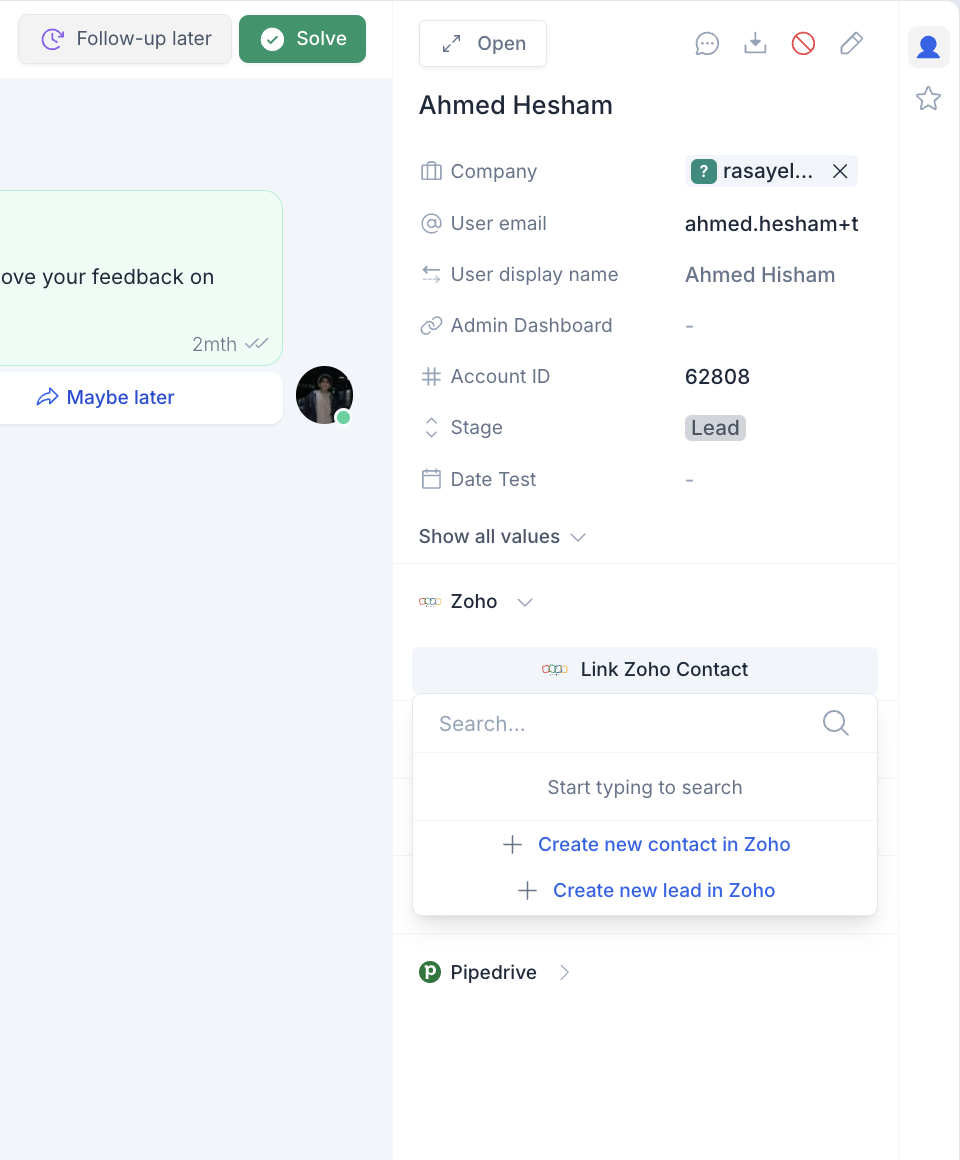
In case of a new Lead reaching out to you on WhatsApp, the Lead will probably not exist yet in Zoho. In this case, you can quickly create a Zoho Lead with the click of a button!
Just click on **“Create new lead in Zoho”**
### Contact creation
In case of a new Lead reaching out to you on WhatsApp, the Lead will probably not exist yet in Zoho. In this case, you can quickly create a Zoho Lead with the click of a button!
Just click on **“Create new lead in Zoho”**
 The Lead will be created properly on Zoho and will now be matched automatically.
### Linking existing leads/contacts to unmatched Rasayel contacts
In case the Rasayel contact does not automatically match an existing Lead/Contact due to the phone's missmatch, you can manually link the contact by searching for the Lead here:
Once linked, the Lead/Contact will always be shown for this Rasayel contact until it is unlinked manually. You can unlink the linked Lead/Contact by clicking **“Unlink”**.
The Lead will be created properly on Zoho and will now be matched automatically.
### Linking existing leads/contacts to unmatched Rasayel contacts
In case the Rasayel contact does not automatically match an existing Lead/Contact due to the phone's missmatch, you can manually link the contact by searching for the Lead here:
Once linked, the Lead/Contact will always be shown for this Rasayel contact until it is unlinked manually. You can unlink the linked Lead/Contact by clicking **“Unlink”**.