> ## Documentation Index
> Fetch the complete documentation index at: https://docs.rasayel.io/llms.txt
> Use this file to discover all available pages before exploring further.
# Contact matching
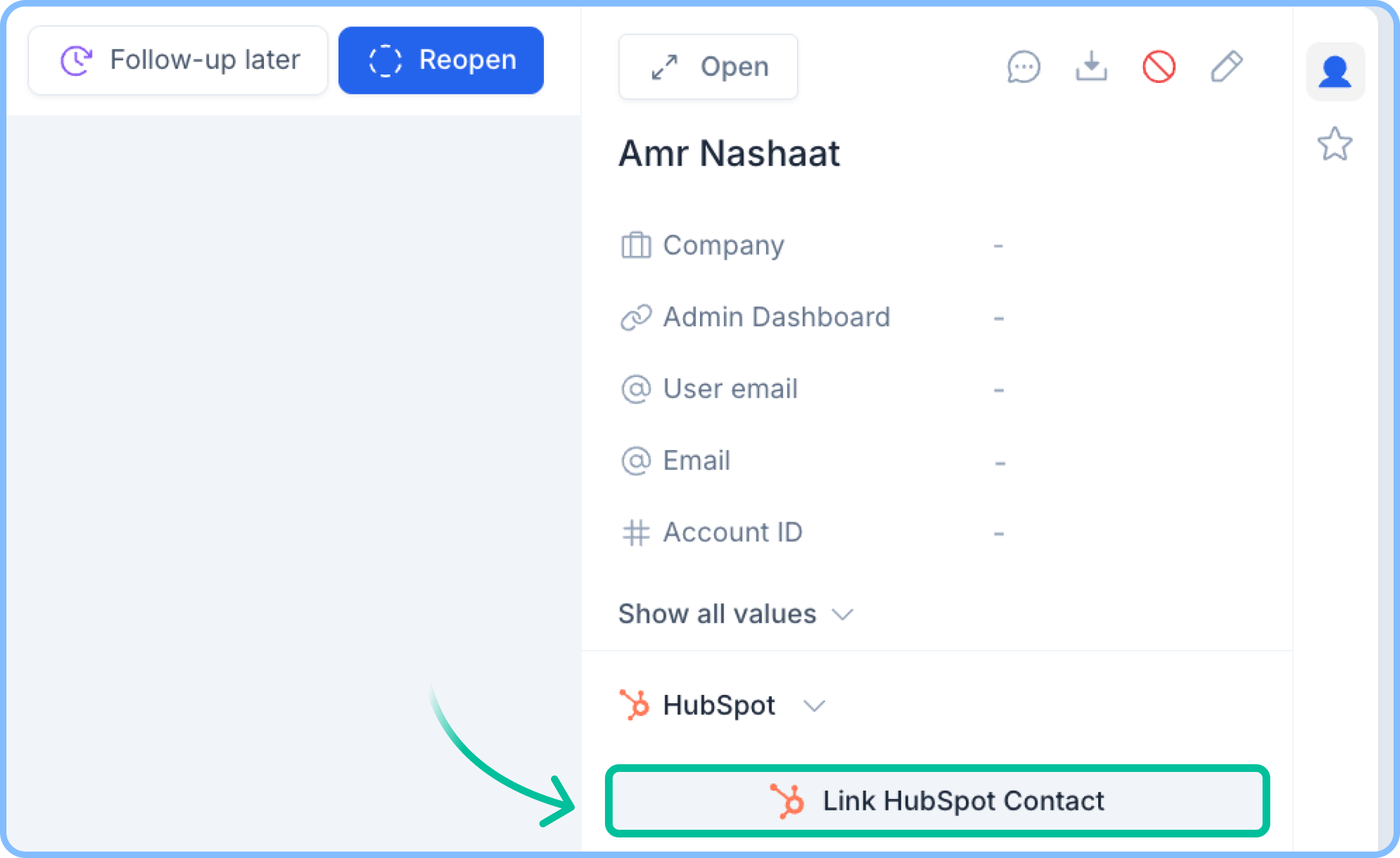
Once you have connected your HubSpot workspace to Rasayel, you will be able to see the **HubSpot contact card** on the conversation sidebar of each conversation.
Rasayel will try to match contacts using the **phone number** and **email** of that contact on Rasayel.
### HubSpot contact card
1. **No matching contact found**
* This means that Rasayel was unable to find a contact on your HubSpot workspace with the same **phone number**.
* Formatting is important. Your contacts’ or leads’ phone numbers on the CRM **must** include the country code
2. **Contact matched**
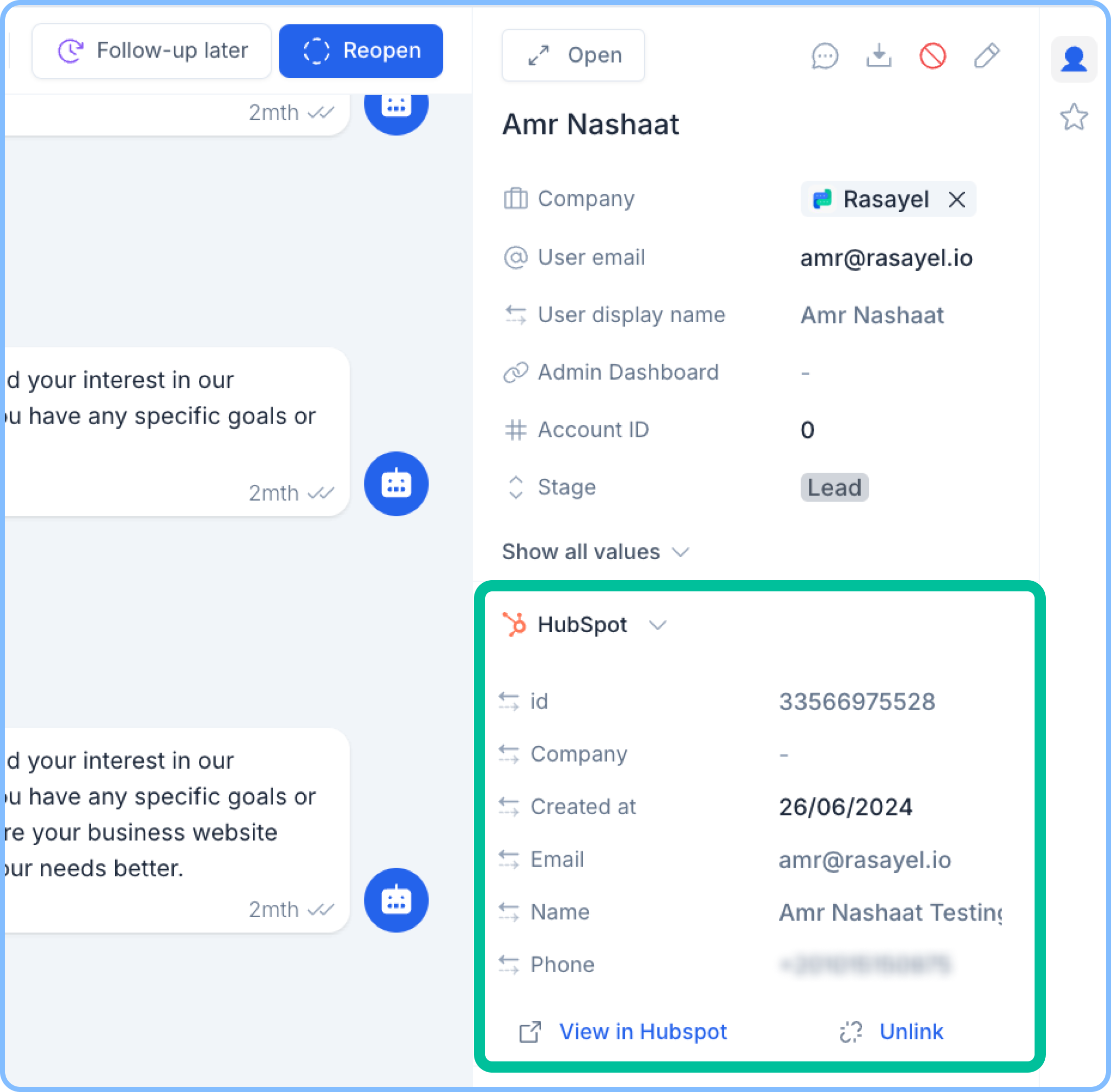 Clicking on **View in HubSpot** will redirect you to the contact profile page on HubSpot.
### HubSpot contact creation from Rasayel
You can also create a HubSpot contact directly from Rasayel as follows:
* Navigate to the **Contact Sidebar**.
* In the **HubSpot Contact Card**, click **Link HubSpot Contact.**
* A drop-down of contacts will show up, and at the bottom, you will be able to click on **Create new contact in HubSpot.**
* Rasayel will create a contact with the same **name, email,** and **phone number**
Clicking on **View in HubSpot** will redirect you to the contact profile page on HubSpot.
### HubSpot contact creation from Rasayel
You can also create a HubSpot contact directly from Rasayel as follows:
* Navigate to the **Contact Sidebar**.
* In the **HubSpot Contact Card**, click **Link HubSpot Contact.**
* A drop-down of contacts will show up, and at the bottom, you will be able to click on **Create new contact in HubSpot.**
* Rasayel will create a contact with the same **name, email,** and **phone number**