> ## Documentation Index
> Fetch the complete documentation index at: https://docs.rasayel.io/llms.txt
> Use this file to discover all available pages before exploring further.
# Tags
In Rasayel, there are two types of tags: **contact** and **conversation** tags. They serve different purposes and apply to different levels of the customer interaction:
Contact tags are labels applied to a **person (contact),** and they are used to categorize or segment customers based on long-term attributes. For example: **industry or region** (Retail, KSA) or **source** (webinar, social media). This tag is persistent across all conversations with this customer.
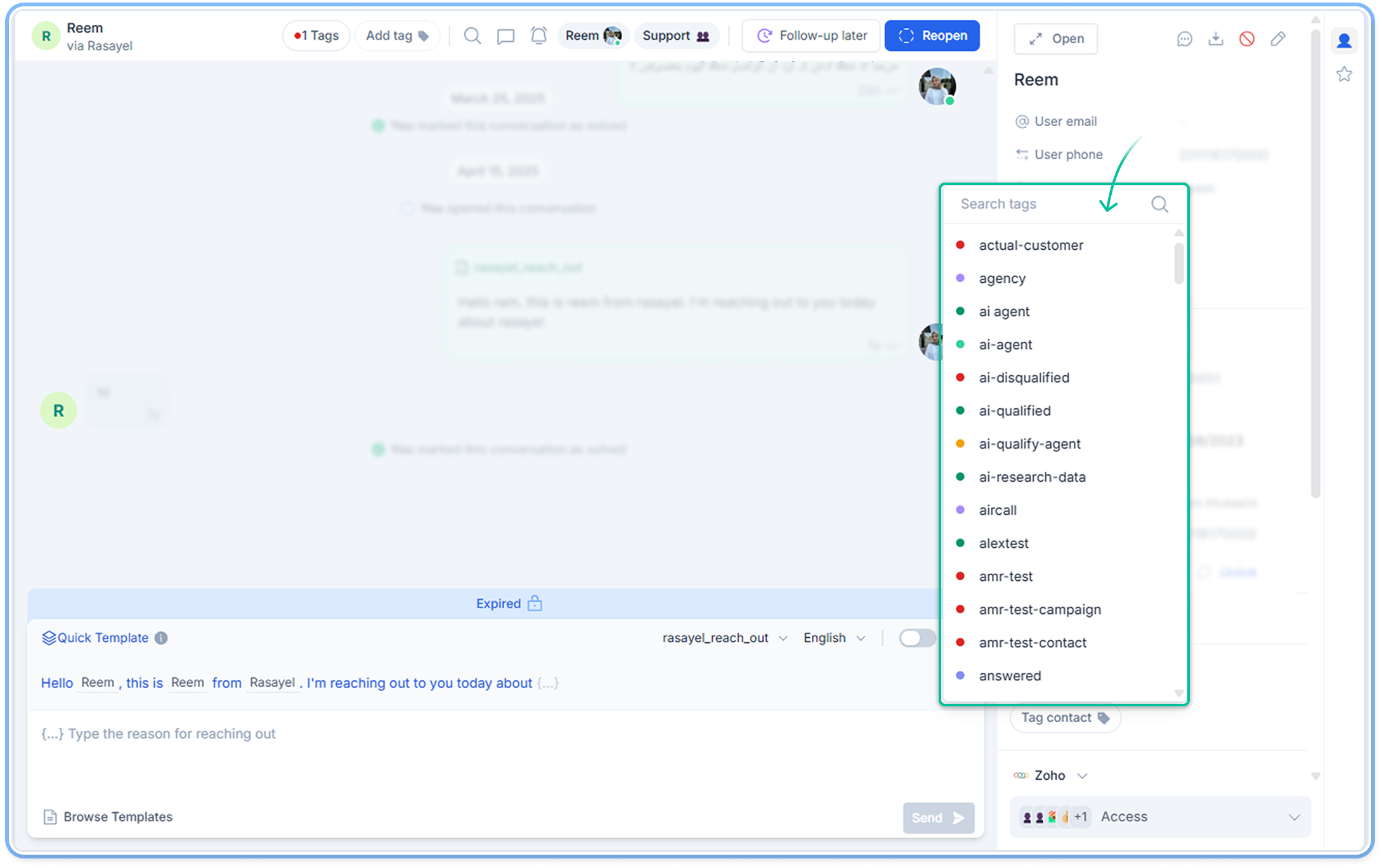 With Rasayel user tags you can, for example, tag VIP customers or users interested in specific products. You can tag users right in the conversation as in the screenshot above. To tag a user just click **Tag contact** in the contact details section. Then, select one or multiple tags from the drop-down menu.
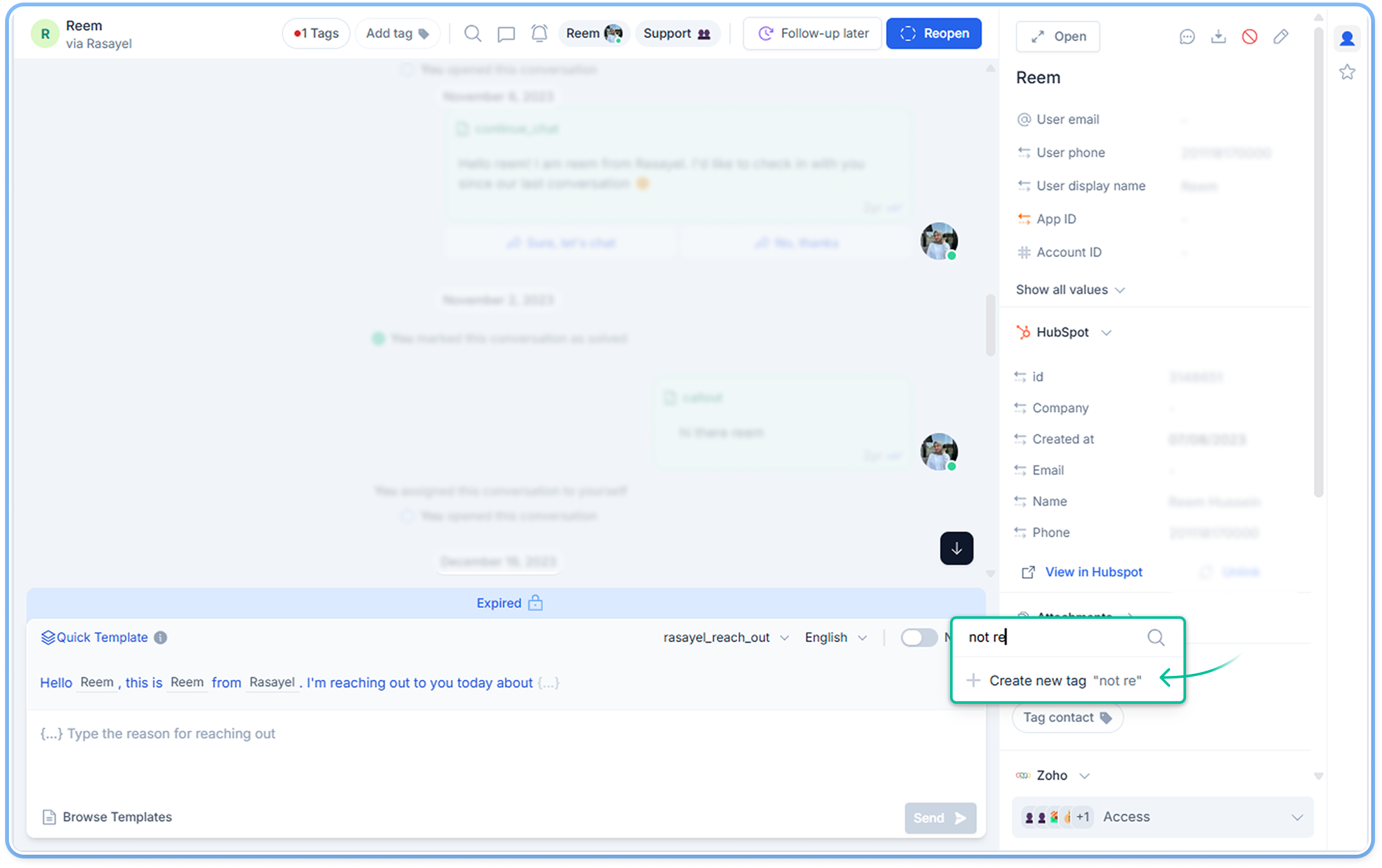 You can also create a new tag right away. Just type the name of the tag and click **Create new tag** and select a color for your new tag.
Tags can be managed from settings as well
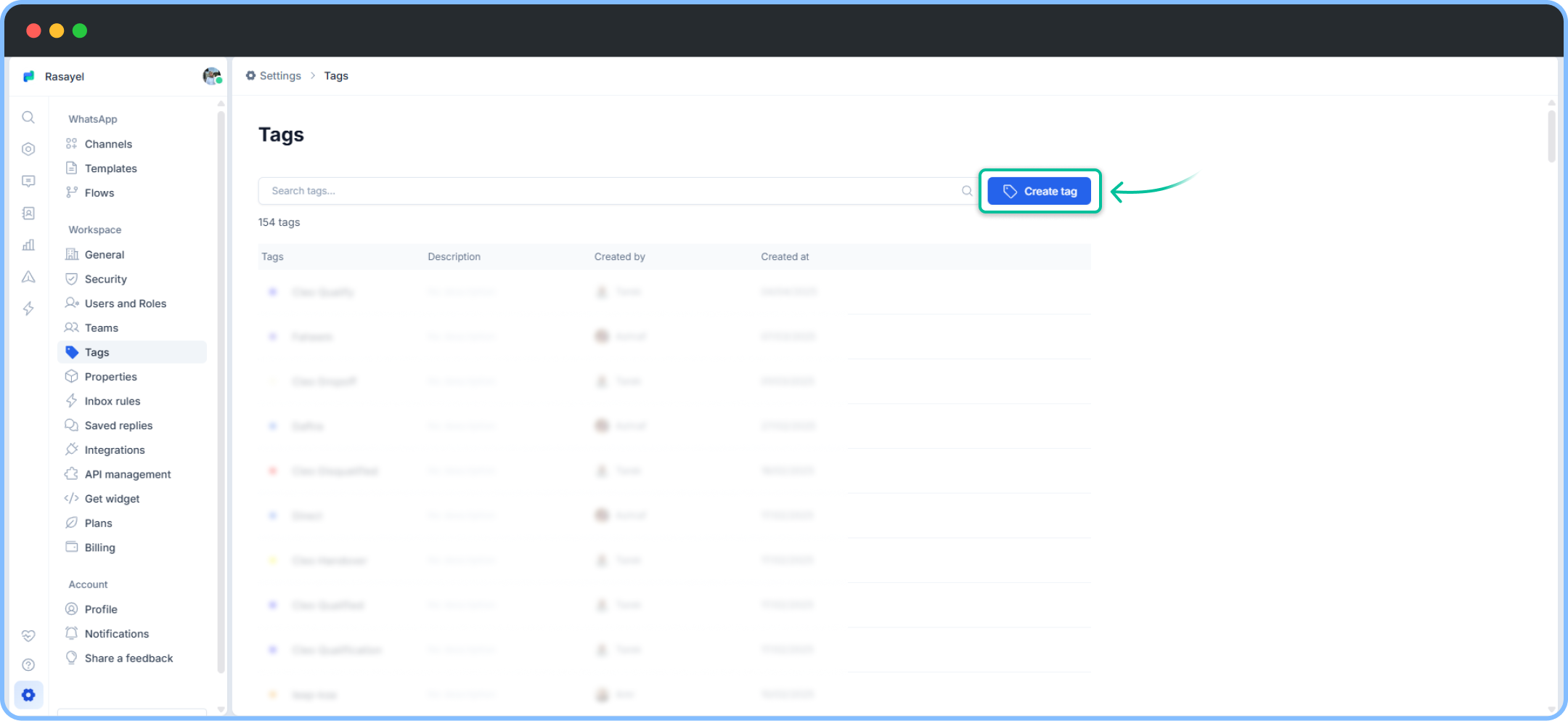
* To add new tags, navigate to **Tags** on your Rasayel dashboard and press **Add tag**.
* Type the name of the new tag.
* Select a color for your new tag.
* Provide tag description
* Click **Save.**
You can also create a new tag right away. Just type the name of the tag and click **Create new tag** and select a color for your new tag.
Tags can be managed from settings as well
* To add new tags, navigate to **Tags** on your Rasayel dashboard and press **Add tag**.
* Type the name of the new tag.
* Select a color for your new tag.
* Provide tag description
* Click **Save.**
 This also applies to conversation tags.
### **Conversation tags**
Conversation tags are labels applied to a specific conversation (thread). They are used to describe the context or purpose of a particular interaction with a customer. For example: **follow-up,** or **tracking escalations or handovers.** These are tied to only that single conversation and not the entire contact.
This also applies to conversation tags.
### **Conversation tags**
Conversation tags are labels applied to a specific conversation (thread). They are used to describe the context or purpose of a particular interaction with a customer. For example: **follow-up,** or **tracking escalations or handovers.** These are tied to only that single conversation and not the entire contact.
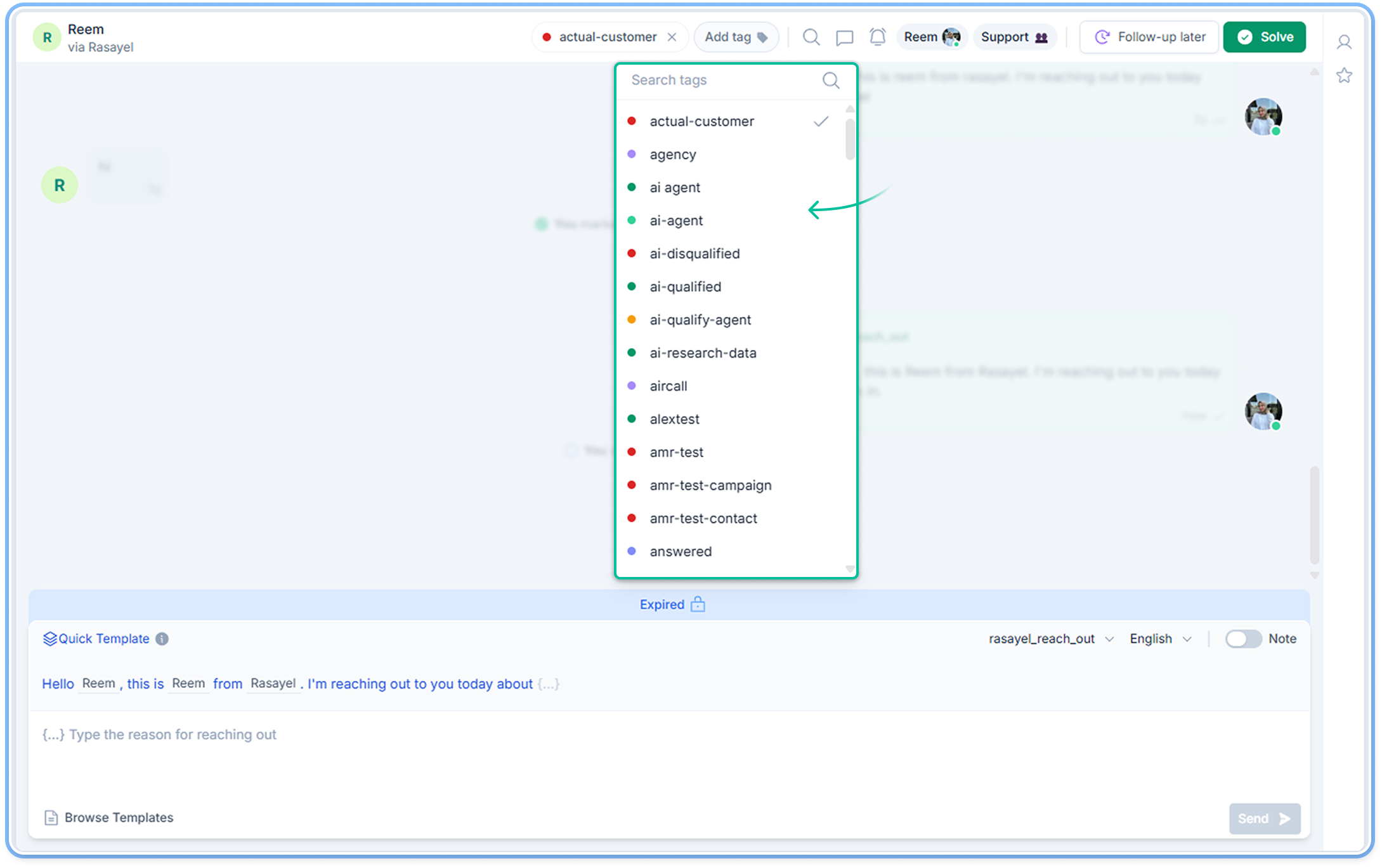 To tag a conversation just click the \*\*Add a tag \*\*icon at the top of your conversation. Then, select one or multiple tags from the drop-down menu.
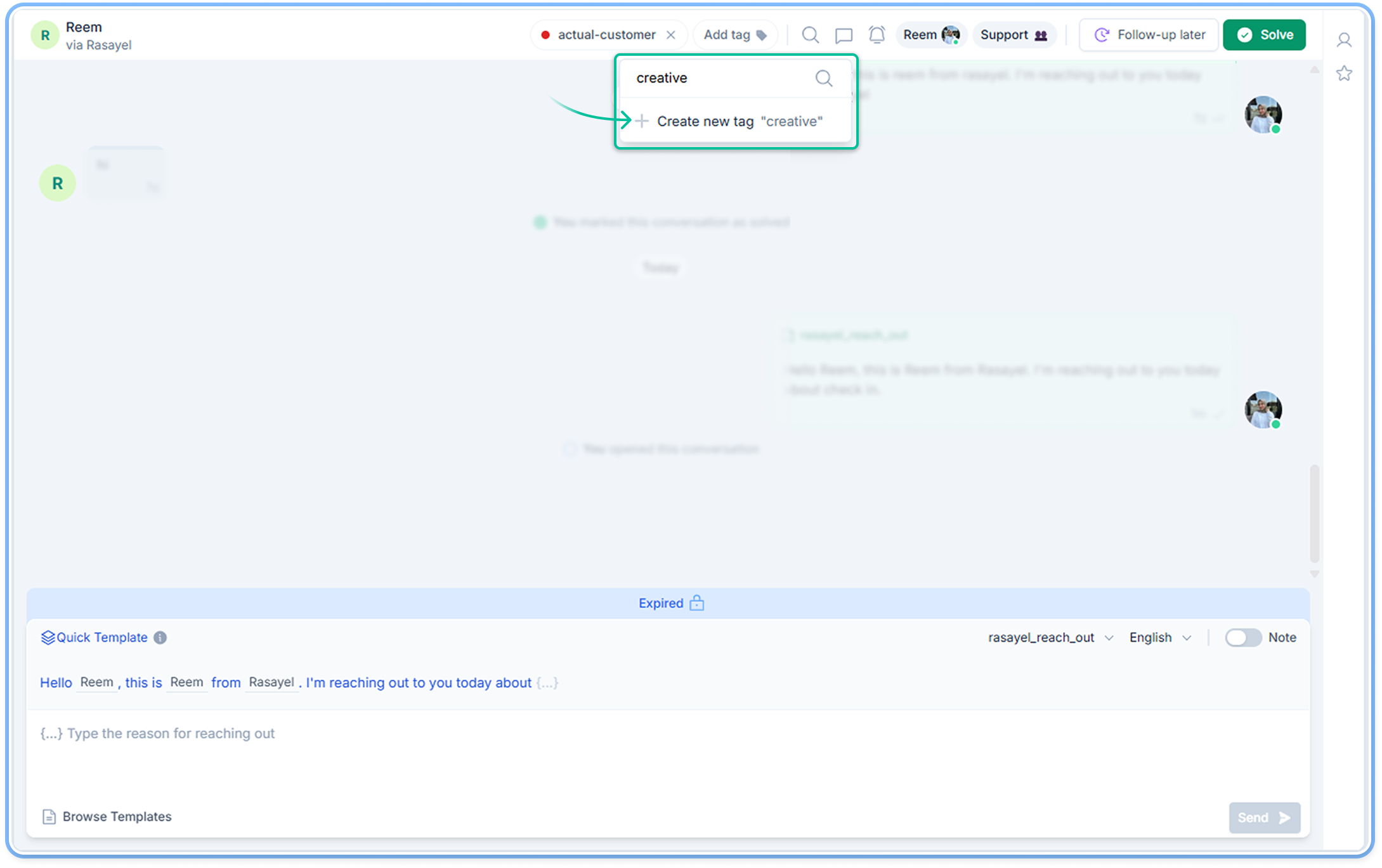 You can also create a new tag right away. To create a new tag, just type the tag's name, click **Create new tag,** and pick the tag’s color.