> ## Documentation Index
> Fetch the complete documentation index at: https://docs.rasayel.io/llms.txt
> Use this file to discover all available pages before exploring further.
# Importing
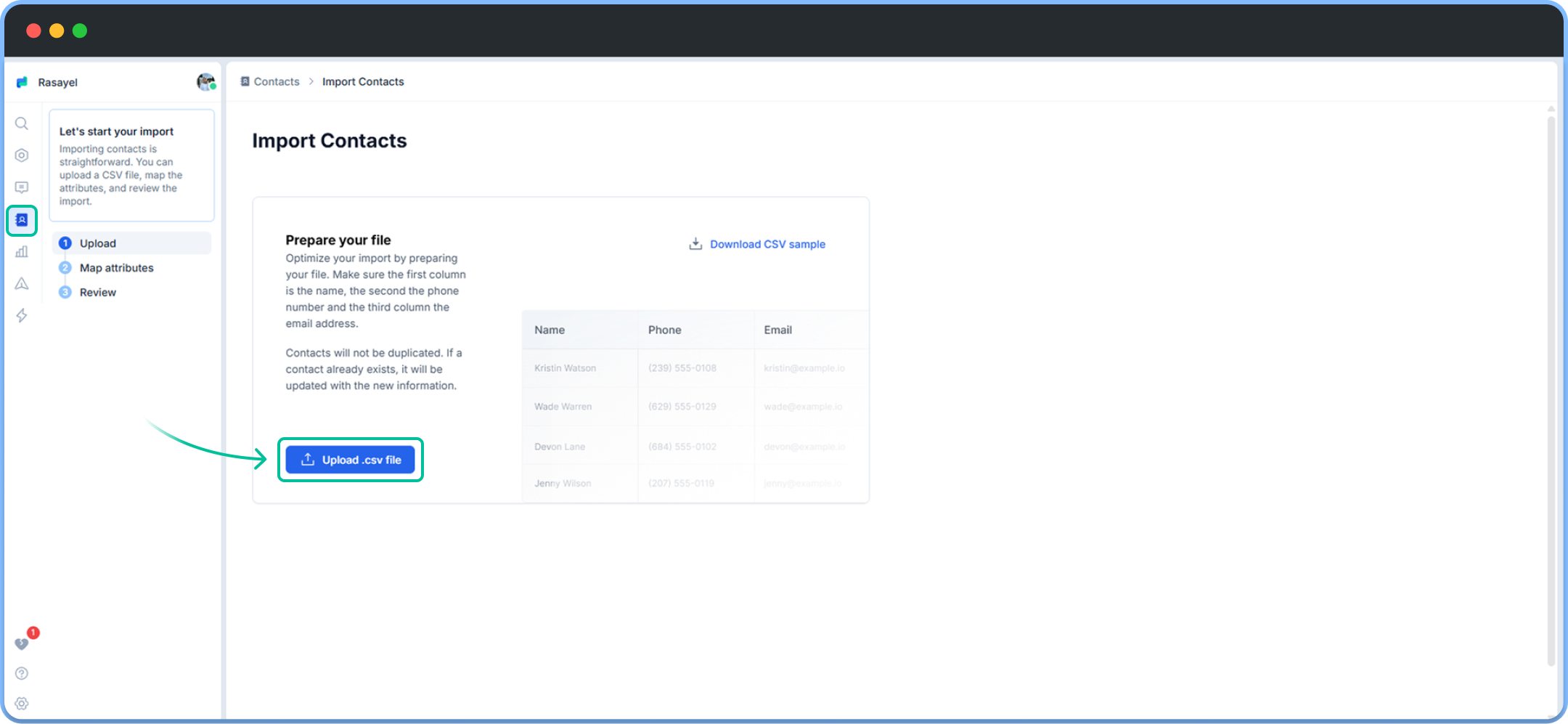
You can bring contacts in Rasayel and engage with customers in a few minutes through contacts upload. We support contact upload through CSV spreadsheets as well as contact sync through your CRM. To import contacts through CSV spreadsheets: head to **Contacts> top right corner > import > from CSV > upload CSV file.**
You will find a sample of the CSV file accepted in Rasayel. You can easily download this one for reference.
**Note:** Each CSV upload can contain up to 5k contacts.
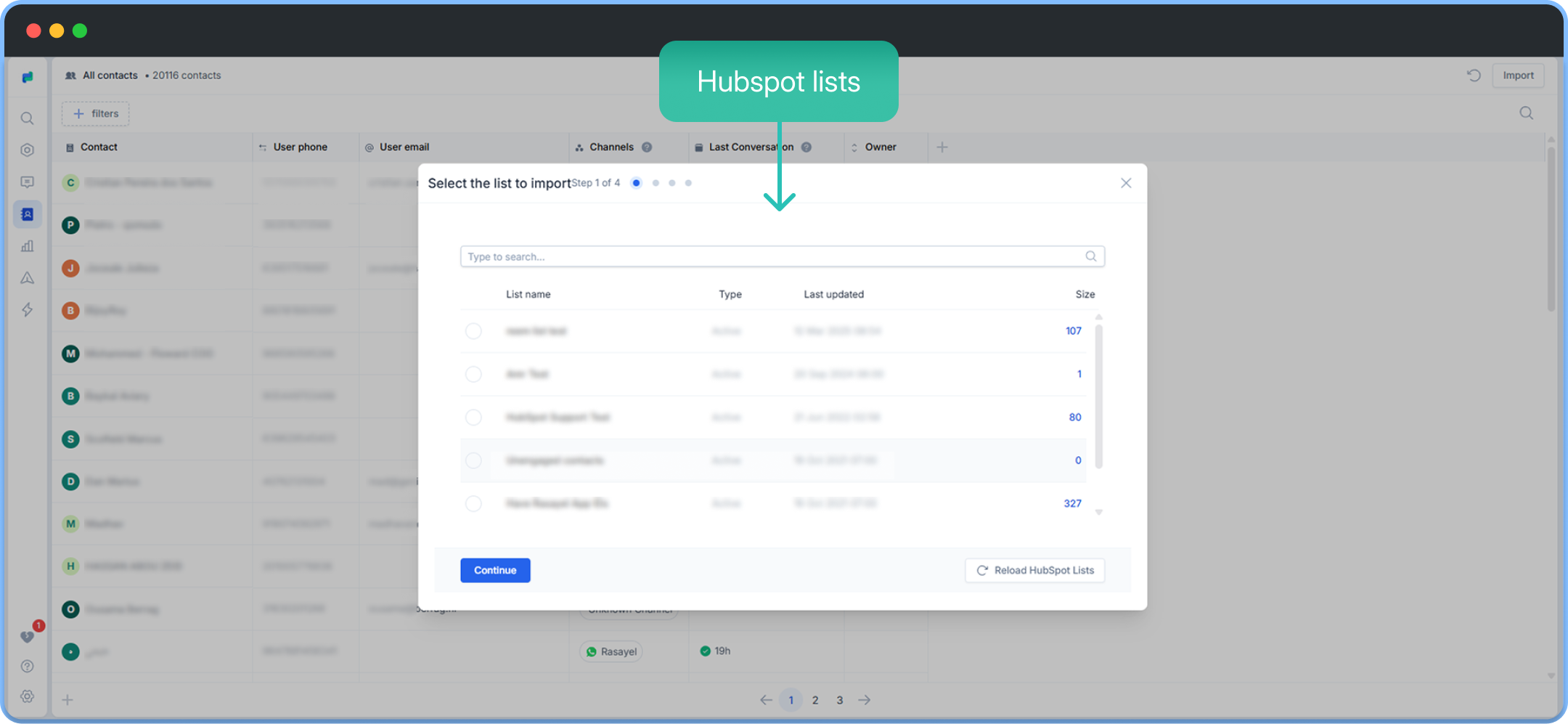
 At the moment, we support HubSpot CRM contact list sync. You should be able to load HubSpot contact lists in Rasayel and select them in contact upload. You can find below the steps to upload contacts from HubSpot in Rasayel.
### Import HubSpot contact lists
You can import HubSpot contact lists directly to Rasayel
To import a HubSpot list:
1. Prepare the contact list on HubSpot.
2. In Rasayel, head to [**Contacts**](https://app.rasayel.io/contacts) **> Top right corner > Import > from HubSpot.**
3. Choose your contact list.
* If your list isn’t showing, try pressing **Reload HubSpot Lists**.
4. Press **Continue**.
**Note**: Contacts’ phone numbers **must** include valid phone numbers with the international code; otherwise, they will not be imported.
At the moment, we support HubSpot CRM contact list sync. You should be able to load HubSpot contact lists in Rasayel and select them in contact upload. You can find below the steps to upload contacts from HubSpot in Rasayel.
### Import HubSpot contact lists
You can import HubSpot contact lists directly to Rasayel
To import a HubSpot list:
1. Prepare the contact list on HubSpot.
2. In Rasayel, head to [**Contacts**](https://app.rasayel.io/contacts) **> Top right corner > Import > from HubSpot.**
3. Choose your contact list.
* If your list isn’t showing, try pressing **Reload HubSpot Lists**.
4. Press **Continue**.
**Note**: Contacts’ phone numbers **must** include valid phone numbers with the international code; otherwise, they will not be imported.