> ## Documentation Index
> Fetch the complete documentation index at: https://docs.rasayel.io/llms.txt
> Use this file to discover all available pages before exploring further.
# Chatbots in the inbox
Agents can manually take over conversations or send outbound chatbots to customers via the inbox.
### Take over a conversation
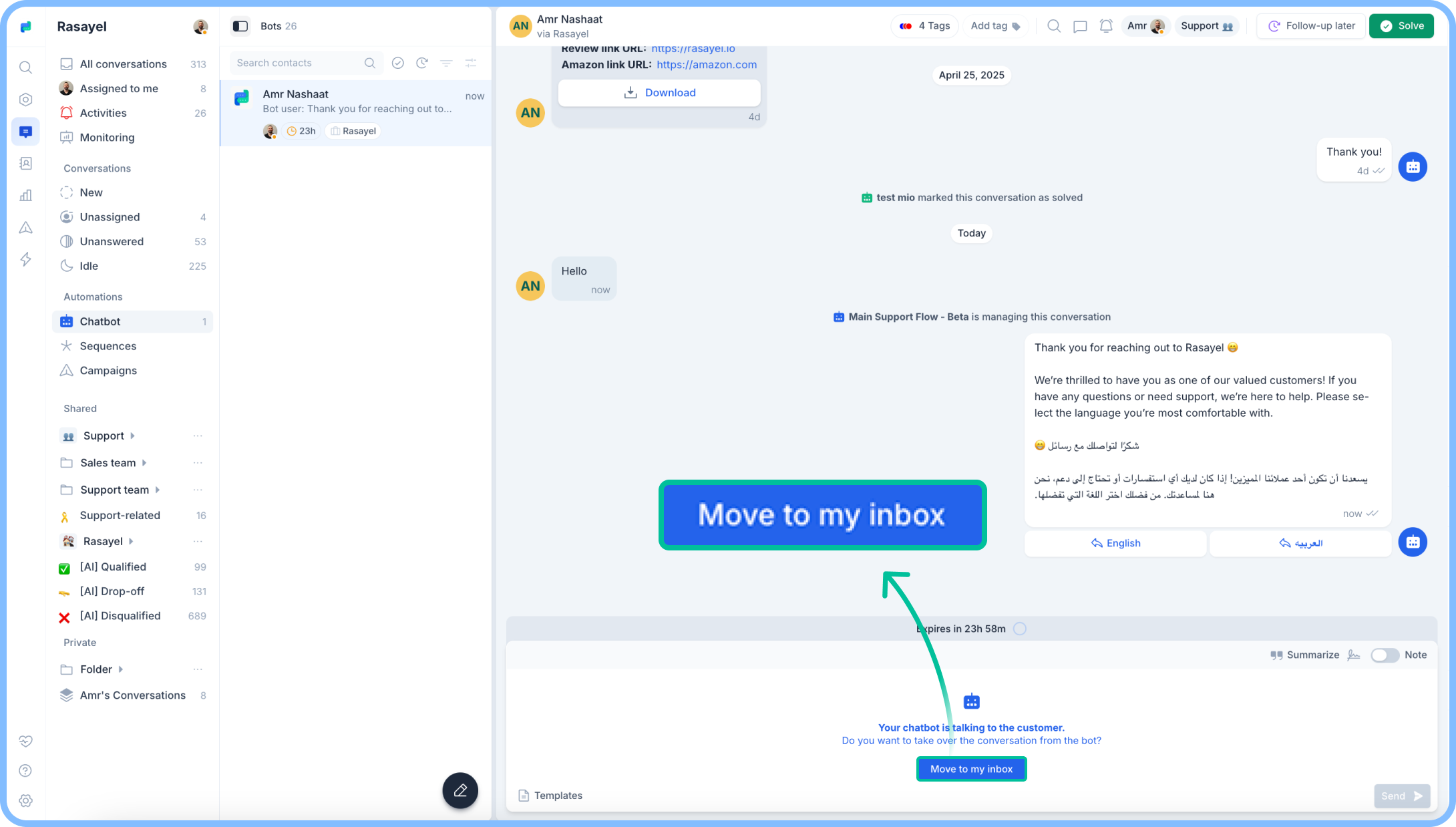
Agents can take over a conversation handled by the chatbot by heading to **Automations in the sidebar > Chatbots > Click on any conversation > Move to my inbox.** The chatbot will stop handling the conversation and It will be automatically assigned to the agent.
 ### Send outbound chatbot
Agents can send outbound chatbots to customers on opened conversations or locked ones. To do:
1. Make sure your outbound chatbot is set as active on the [chatbots page](https://app.rasayel.io/automations/bots/)
2. Head to the conversation you wish to send the outbound chatbot to, and click on **Templates** in the composer
3. Search for your chatbot’s name, click on it, and then fill the required template variables.
### Send outbound chatbot
Agents can send outbound chatbots to customers on opened conversations or locked ones. To do:
1. Make sure your outbound chatbot is set as active on the [chatbots page](https://app.rasayel.io/automations/bots/)
2. Head to the conversation you wish to send the outbound chatbot to, and click on **Templates** in the composer
3. Search for your chatbot’s name, click on it, and then fill the required template variables.
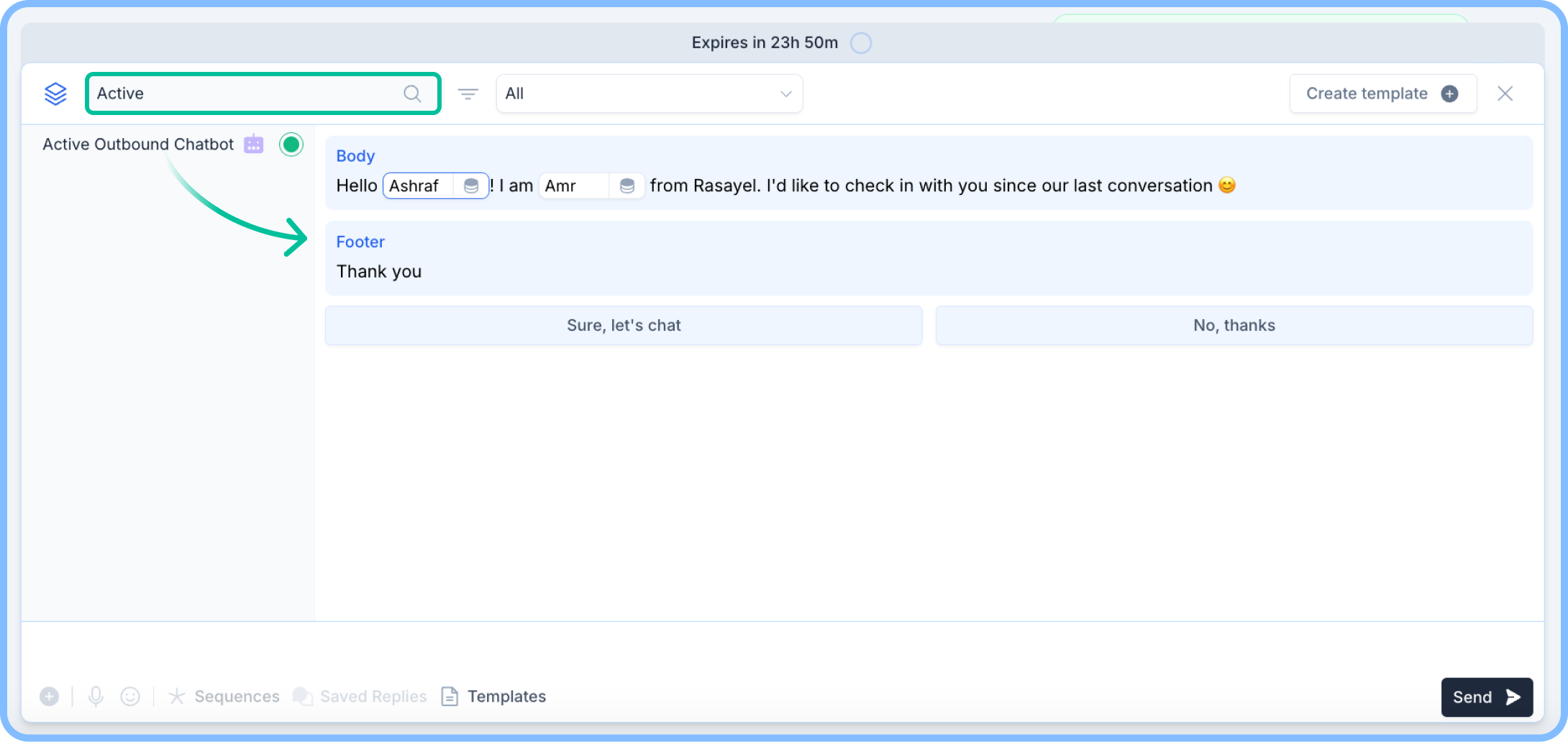 4. Press **Send**!